Release Info for TMS - version 9.1 - Release Date: April 5, 2011
Introduction
This document describes the changes that have been made in this release of the TMS system. Please make sure to read this entire document and make any changes to your processes and procedures as necessary.
Additional Products Needed
This version of the TMS can be used with the Media Adaptation Tool (MAT) version 6.0.3 and above.
Functionality Incorporated into this Release
The following features and enhancements are included in this release:
- Click to Send Comment Notifications
- Optional Notifications for Translators and Approvers
- Premedia Configurations
- Markup in Notifications
- Related Phrases
Click to Send Comment Notifications
Feature/Enhancement
Only send 'markup received' notifications when the user clicks a button rather than automatically sending notifications whenever a comment is added.
Who Does This Affect?
Anyone adding comments to proofs.
What Does this Mean to Me?
Asset approvers should add comments as you did previously but you now need to click a new Send Comments button to send the notification.

Any unsent comments will show the comment title in red with a warning exclamation mark.
This allows you to add multiple comments over multiple sessions and only send one notification.
A warning message will be displayed if you attempt to navigate away from the proofing page without sending the notification:
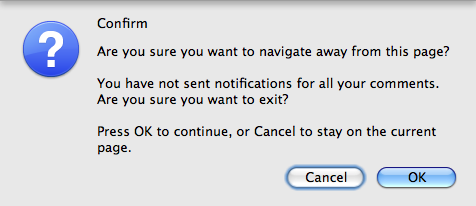
Clicking OK will preserve the comment but will not send the notification, you can then return to the proof at a later point and send the notification.
Optional Notifications for Translators and Approvers
Feature/Enhancement
When setting up a job, admins will now be able to select whether the translators and approvers should receive notifications related to the job. This will allow users to add all the possible translators/approvers in one go but only actually notify the ones they want to action the request.
Who Does This Affect?
Administrators and power users for setting up the job; translators and approvers for receipt of notifications.
What Does This Mean to Me?
When the admin/power user clicks the Request Translations or Request Review button, a window similar to the following will be displayed:
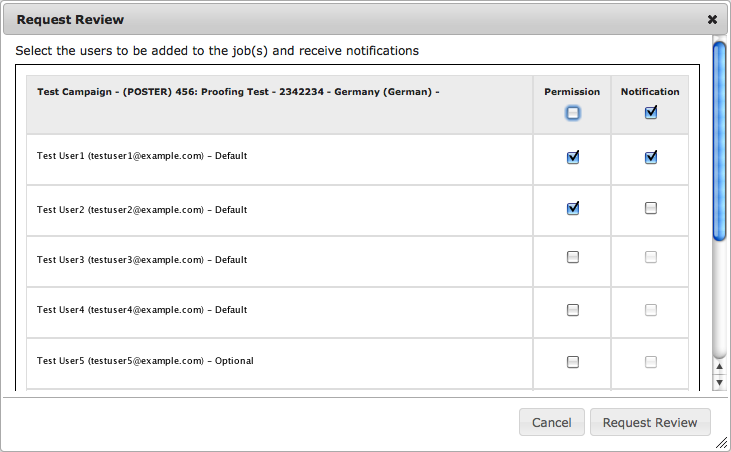
The window has been rearranged to show two new columns:
- Permission – allow this user to translate/review this job.
- Notification – send the relevant notifications to this user.
Note that if someone is given the permission but not sent the notifications they will still be able to see and translate/approve the job if they browse through the system. You can change a users notification settings at any time from the Job Details page.
Translators and approvers will only be notified when the administrator wants them to action some work.
Premedia Configurations
Feature/Enhancement
Premedia jobs can now be grouped into 'configurations' to allow them to be managed as single units. For example, a '1-disc international' configuration could contain:
- Disc label (Brazilian Portuguese)
- Wrap (Brazilian Portuguese)
- Disc label (Argentine Spanish)
- Wrap (Argentine Spanish)
- Disc label (Mexican Spanish)
- Wrap (Mexican Spanish)
Note that configurations are optional and do not need to be created unless you wish to do so.
Who Does This Affect?
Administrators and Power Users.
What Does This Mean to Me?
A new button has been added to the Campaign toolbar:
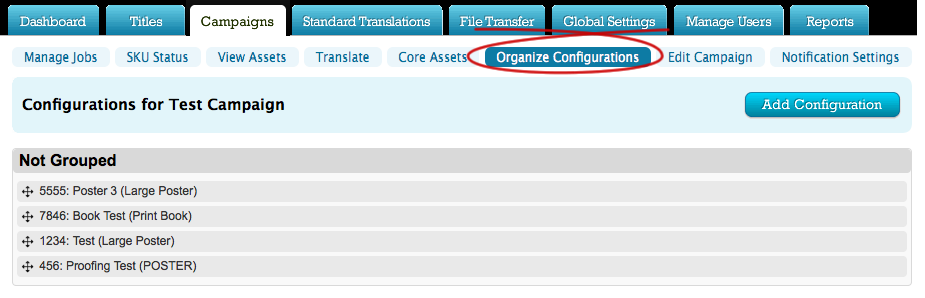
Initially the campaign will not contain any configurations so the jobs will be listed in a 'Not Grouped' section as shown above. You can click the Add Configuration button to create a new group and then drag the jobs into the new configuration:
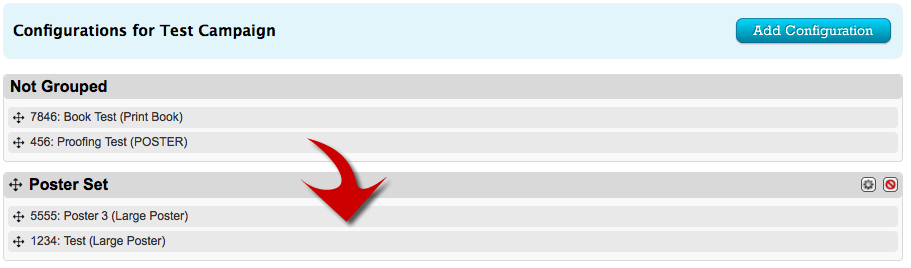
Dragging the items up or down will change the order of the jobs within the group. After creating one or more configurations, the Manage Jobs page will change to show them:
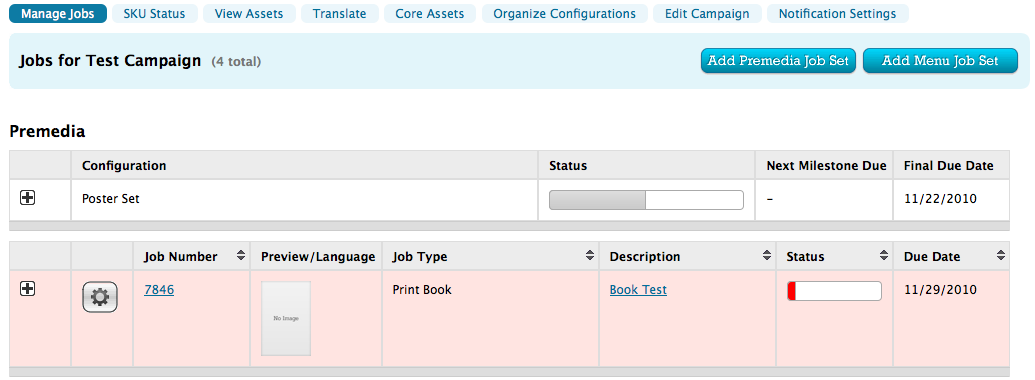
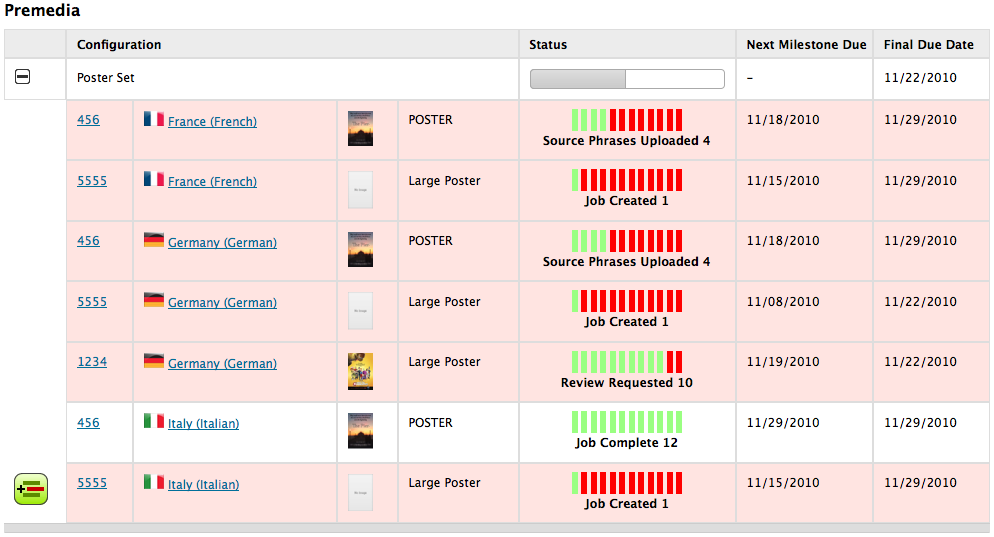
Click the + button to show the contents of the configuration. The assets will be grouped by language:
Markups in Notifications
Feature/Enhancement
Markup Received notifications now include a small thumbnail showing the location of the markup in the asset.
Who Does This Affect?
Administrators, Power Users and Approvers.
What Does This Mean to Me?
The Markup Received notification will now include a thumbnail image of the markup (where applicable).
Related Phrases
Feature/Enhancement
Title administrators can now add related phrases (such as character and location names) to a title and then manage the translations.
Who Does This Affect?
Title Administrators, Title Translators and Title Approvers.
What Does This Mean to Me?
Title administrators can add related phrases within the title settings and also add special DCVI approvers to check the translations.
Title translators will be notified when a new related phrase is added and then be able to add the translation and alternates as required.
DCVI approvers will be notified that a related phrase is ready for approval and can then either approve or reject the translation.