Release info for TMS - version 8.2 - Release Date: March 1, 2011
Introduction
This release of the TMS system incorporates a major change to the site security as well as to how the proofing tool works.
In addition, a new reporting module has been added for administrators and power users.
Additional Products Needed
This version of the TMS can be used with the Media Adaptation Tool (MAT) version 6.0.3 and above.
Deployment Details
This version was deployed on March 1st 2011.
Functionality Incorporated into this Release
The following features and enhancements are included in this release:
- SSL Connection
- Proofing Tool - Overlay Image to Compare Versions
- Proofing Tool - Evenly Balanced Columns
- Proofing Tool - Link From Markup to Comment
- Proofing Tool - Multi-Page Enhancements
- Reporting
- Server Alerts and Announcements
- Release Log
- Ignore Weekends in Calculated Milestones
- Increased Support for Core Asset File Types
SSL Connection
Feature/Enhancement
All the TMS sites have been converted to use an ssl/https connection. This means that any direct links to the site(s) now use an https:// prefix rather than an http:// one, for example:
https://tms-demo.zoodigital.com
Who Does This Affect?
All users of the TMS and MAT.
What Does this Mean to Me?
TMS users should change any browser shortcuts/bookmarks to use the https:// prefix, although in the short term they will be automatically routed to the correct connection if they use http://.
MAT users SHOULD NOT edit their TMS connection to point to the https:// site. A forthcoming release of MAT will allow https connections with the TMS.
Proofing Tool - Overlay Image to Compare Versions
Feature/Enhancement
You can now overlay two different versions of an asset in the proofing tool so that you can compare the two versions.
Who Does This Affect?
Administrators, Power Users and anyone with Job Management Approval permission.
What Does This Mean to Me?
To overlay the image, click the Overlay button on the view toolbar:
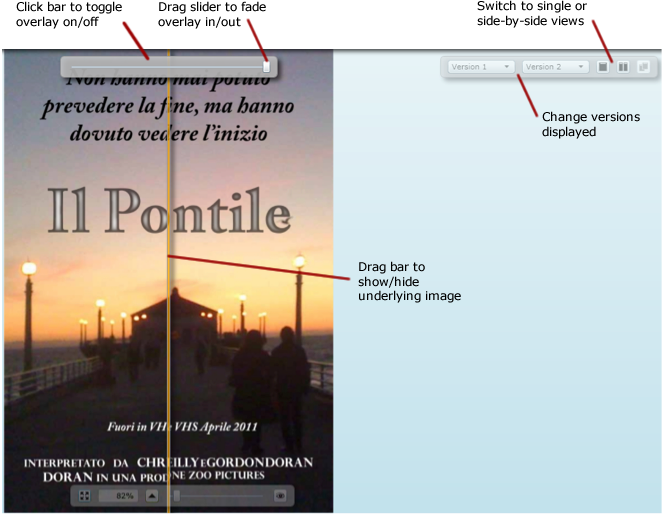
You will then be able to adjust the view to show different versions, quickly switch between the original and overlayed images and fade the overlayed image in/out.
Proofing Tool - Evenly Balanced Columns
Feature/Enhancement
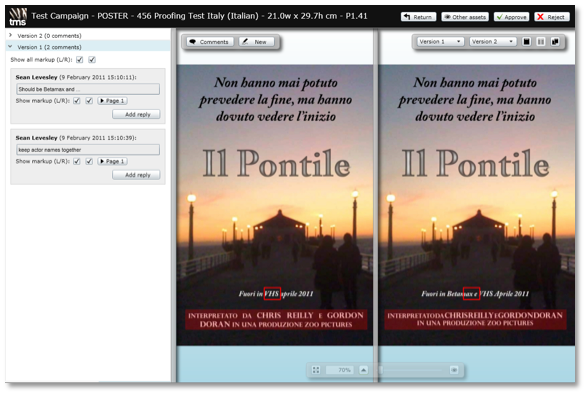
When viewing two versions of an asset in the proofing tool, the two views now show the same amount of information when the Comments section is opened.
Who Does This Affect?
Administrators, Power Users and anyone with Job Management Approval permission.
What Does This Mean to Me?
When opening the Comments section the proof view will be evenly balanced between the two versions:
Proofing Tool - Link From Markup to Comment
Feature/Enhancement
This feature will allow you to easily see which comment is related to a markup.
Who Does This Affect?
Administrators, Power Users and anyone with Job Management Approval permission.
What Does This Mean to Me?
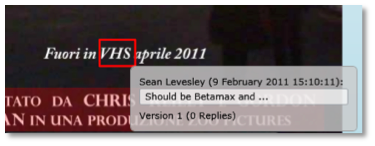
You can now hover over a markup in a proof and see details of the associated comment:
Proofing Tool - Multi-Page Enhancements
Feature/Enhancement
A new control bar has been added to multi-page proofs to allow the user to flick between pages. The proofing tool will also now accommodate differing numbers of pages between versions.
Who Does This Affect?
Administrators, Power Users and anyone with Job Management Approval permission.
What Does This Mean to Me?
The new control bar is shown when you have multi-page proofs in the proofing tool. This allows you to jump to the first/last pages and also to specific pages.

When viewing versions with differing numbers of pages a link/unlink button allows you to scroll between pages of both versions at the same time or independently:

If the versions are unlinked, a separate control bar will be displayed to scroll through the pages of the version in the right-pane of the proofing tool.
Reporting
Feature/Enhancement
Administrator and power users can generate system reports on both jobs and users of the system. The reports are customizable and can be exported in xls format.
Who Does This Affect?
Administrators and power users only. Other users will not see the Reports tab.
What Does This Mean to Me?
If you have access to reporting you will see a new tab - Reports. Clicking the tab shows a list of predefined reports as well as a Create report from blank link:
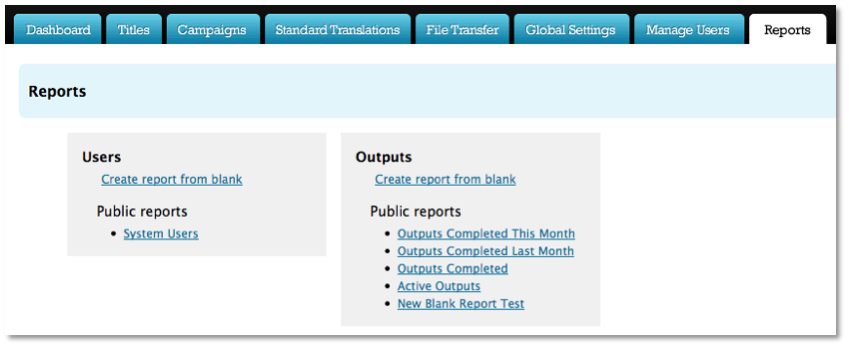
The reports are grouped into two sections based on their content: Users and Outputs.
Clicking a predefined report will, after a brief pause, start generating the report data:

The report will be displayed on the Report tab:
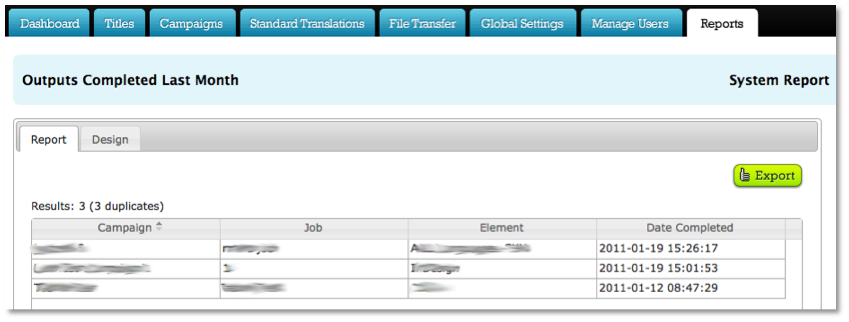
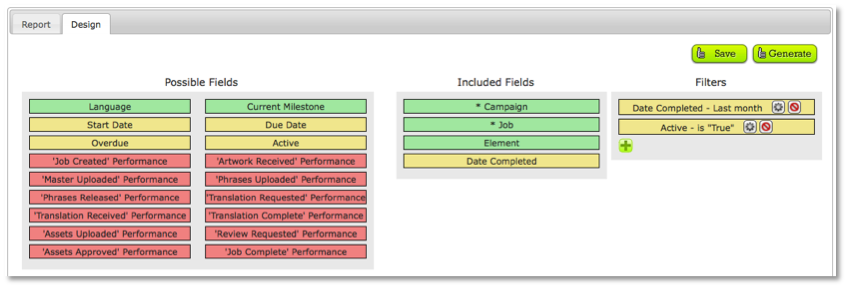
You can change the content of the report by clicking the Design tab and then dragging the fields into the Included Fields column:
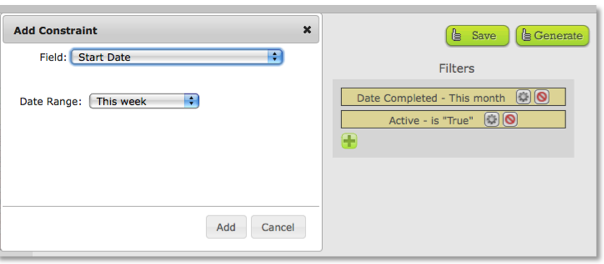
Filters can be applied by clicking the + button, selecting a field and then entering any parameters:
Server Alerts and Announcements
Feature/Enhancement
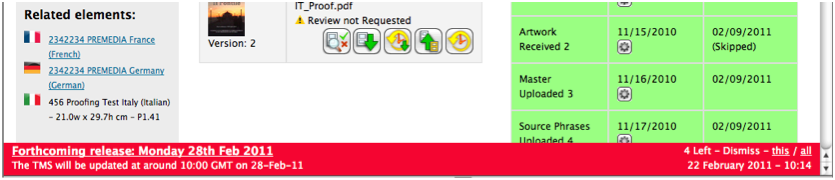
When applicable, when you are logged into the system you will see an information bar at the foot of all the pages. This bar is used to alert you to forthcoming server down time for maintenance/upgrades/etc. as well as providing information about recent releases.
Who Does This Affect?
All users.
What Does This Mean to Me?
For a period prior to a release the information bar will be used to alert you that a server will be unavailable from a specified time. You can dismiss the alert at any time. Alerts are shown with a red background:
The same feature will be used to tell you about releases that have occurred and also provide other information as required. Announcements are shown with a gray background:
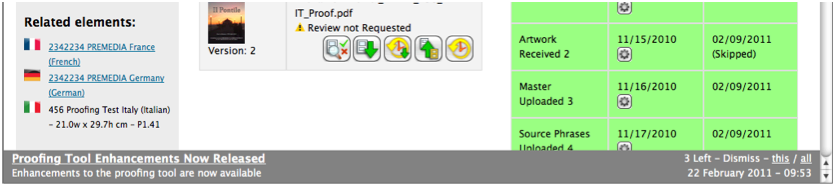
Announcements will be stacked up so that even if have not used the TMS for a period you will still be able to access them. They may also include a link to the Release Log (see next section).
Release Log
Feature/Enhancement
You will now be able to access a log of all the server updates.
Who Does This Affect?
All users, although what you can see will depend on whether you have administration privileges or not.
What Does This Mean to Me?
You will be able to click on a Release Log link in the footer of each page, which will show a page with links to all the previous releases.
Each release log will include details of the features and enhancements included in the release and, where applicable, how to use them.
The release log may also be linked from any alerts or announcements in the announcement bar.
Ignore Weekends in Calculated Milestones
Feature/Enhancement
Automatic calculation of milestone dates now excludes weekend days.
Who Does This Affect?
Administrators and Power Users.
What Does This Mean to Me?
Previously, milestone dates were automatically calculated using the offset specified in the Global Settings. These dates have now been recalculated so that they do not include weekend days in the calculation. Therefore, assuming a Translation Received milestone is due on Friday 11th March 2011 and the Translation Requested milestone is five days earlier, it will now be due on Friday 4th March 2011.
Note that this change will have affected all automatically calculated dates currently in the system. Any manually edited dates have not been affected by this change.
Increased Support for Core Asset File Types
Feature/Enhancement
The core asset upload feature will now accept most file types with the exception of the following: exe, sh, bat, cmd, com, pif, chm, hlp, hta, inf, ins, js, jse, lnk, msi, nws, scr, sct, shs, url, vb, vbs, vbe, wsc and wsh.
Who Does This Affect?
Users uploading core assets.
What Does This Mean to Me?
If you attempt to upload an invalid format a warning message will be displayed and you will be prevented from uploading the asset.