Release info for TMS - version 8.2.0.8 - Release Date: March 7, 2011
Introduction
This document describes the changes that have been made in this release of the TMS system. Please make sure to read this entire document and make any changes to your processes and procedures as necessary.
Additional Products Needed
This version of the TMS can be used with the Media Adaptation Tool (MAT) version 6.0.3 and above.
Campaigns Page Changes
Feature/Enhancement
The Campaigns page has been updated to improve the usability and provide quicker access to the relevant parts of the campaigns.
Who Does This Affect?
All users.
What Does this Mean to Me?
The following changes have been made:
New Tabs
The Campaigns page is now split into three tabs:
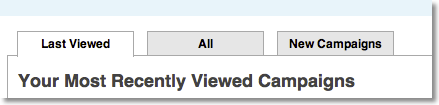
- Last Viewed - the last ten campaigns you have accessed.
- All - all the campaigns sorted in alphabetic order.
- New Campaigns - campaigns that have been added to the system in the last three months.
Campaign Panels
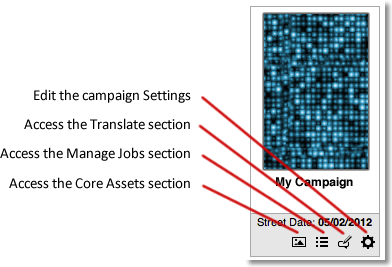
The panels for each of the campaigns now contain controls that allow you to quickly access the relevant part of the campaign. Click on the icon to access the relevant section.
Campaigns Sidebar
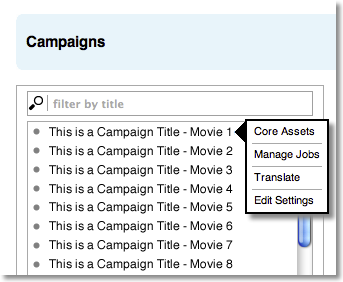
The sidebar now includes a menu that appears when you hover your mouse over a campaign name. The menu provides access to the Core Assets, Manage Jobs, Translate and Edit Settings sections of the campaign.
Core Assets Page Changes
Feature/Enhancement
The Core Assets page has been updated to improve the usability and help you find the core assets quickly and easily.
Who Does This Affect?
Users who create, manage or download core assets.
What Does this Mean to Me?
The following changes have been made:
Asset Grid
The core assets are now displayed in a grid pattern; this allows you to see more assets on the page at once.
Each asset is displayed with a thumbnail image and a set of icons that allow you to perform actions on the asset.
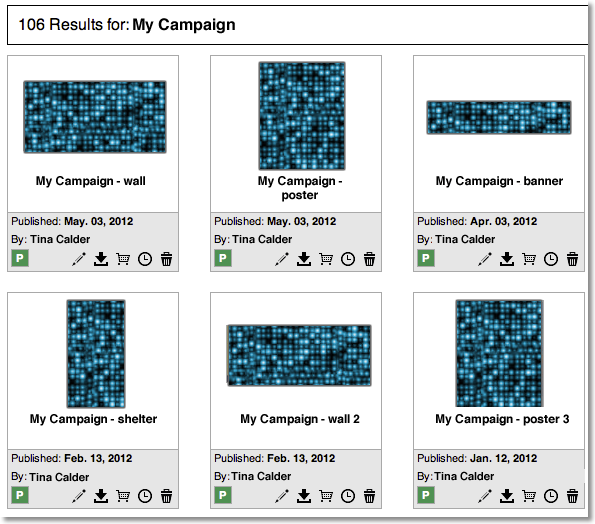
Note that not all the actions may be available depending on your system permissions; similarly Draft assets are only viewable if you have the necessary permission.
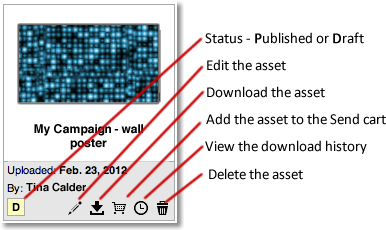
Note that when you click the Download icon, you will be able to select the method to download the asset: Standard or Aspera. The Aspera option is used for high-speed downloads but is only available if the asset is over 10MB and you have Aspera Connect installed.
Core Asset Details
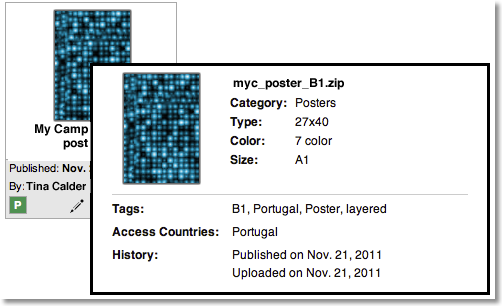
You can hover your mouse over the core asset to see its details. The exact details will vary depending on what meta-tags have been defined.
Core Asset Preview and Download
Click the asset thumbnail image to see a larger preview of the asset.
You can click the Download Preview Image link to download the preview in jpeg format.
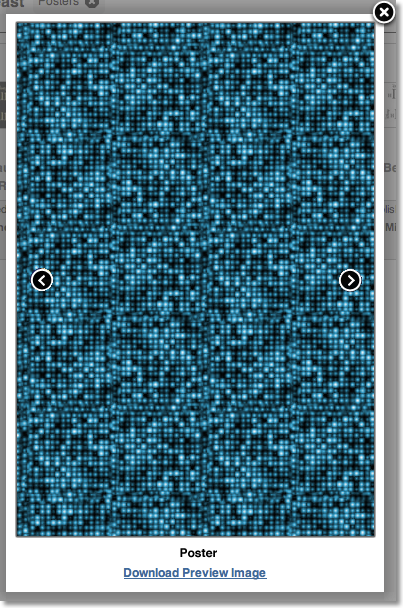
If required, you can move your mouse over the preview and click the Previous and Next buttons - or use the Left and Right Arrow buttons on your keyboard - to cycle through all the currently displayed asset previews.
Core Assets Search
Note that searching for core asset meta-tags is only available if it has been configured for your system.
Core assets can now be tagged with meta-data to allow for more advanced searching.
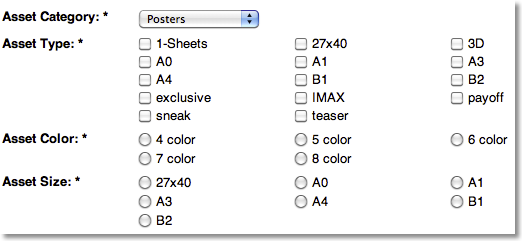
The meta-tags are nested so that the selection of one option will display further options, for example selecting the asset category Posters will show the poster options as well as Color and Size:
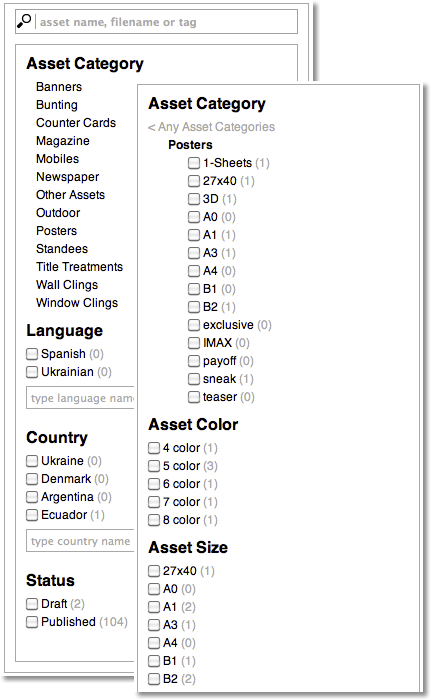
The Search field at the top allows you to search for text strings in the asset name, filename or tags. Note that this does not search in the meta-tags.
An asset count - in brackets after the meta-tag - shows how many assets will be displayed if you select the option.
As you select the meta-tags, they will be displayed in the results bar above the asset grid:

Click the X next to the tag to remove it from the search.
Define Meta-Tags for Core Assets
You can define the meta-tags when you add a core asset, or edit its properties. The actual meta-tags available will depend on the system, but they all behave in the same manner.
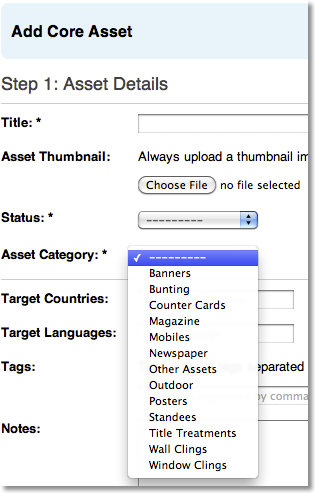
When you select a meta-tag, if it has any subordinate tags, then they will be displayed:
The Target Countries and Languages meta-tags are used for defining the countries and languages that are associated with the asset, i.e. the country who the asset was originally was targeted at, and the language(s) within the asset. The most recently selected countries and languages will be displayed, either select one or more of those, or start to enter the name and then select the relevant option that is displayed. You can leave these options blank if you do not need to specify the target country/language.
You can leave these options blank if you do not need to specify the target country/language.
The Access Countries meta-tag is used for defining which countries can access (view and download) the asset.
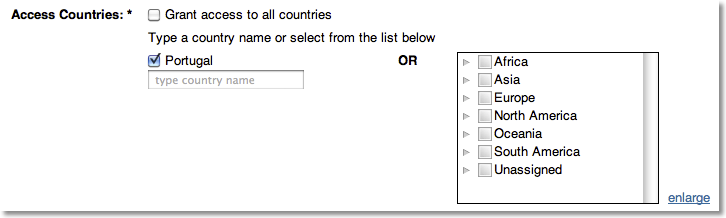
The most recently selected countries will be displayed, either select one or more, or start to enter the name and then select the relevant option that is displayed. Alternatively, you can select the countries from the expandable list on the right.
Note that if you select a country on either side of the OR then that country will be able to access the asset.